
Introduction
Microsoft Power Automate provides run history to help developers monitor workflow execution, troubleshoot errors, and validate the data passed between actions. However, this run history can also expose sensitive information, such as customer email addresses, confidential business details, authentication-related values, and other private data.
For example, a Compose action might contain a customer's email address or a confidential reference number. By default, users with access to the relevant run details may be able to view that information in the action's inputs and outputs.
Power Automate provides two useful settings to reduce this exposure:
- Secure Inputs: Hides an action's input values in run history.
- Secure Outputs: Hides an action's output values in run history.
By enabling these settings on appropriate actions, developers can make workflow run history safer while preserving the workflow's intended functionality.
What Are Secure Inputs and Secure Outputs?
| Feature | Purpose | Example |
|---|---|---|
| Secure Inputs | Hides an action's input values in run history. | Customer details passed into a Compose action |
| Secure Outputs | Hides an action's output values in run history. | A response containing confidential customer information |
These settings control the visibility of supported action data in run history. They do not replace permissions, proper secret storage, or other security controls. See the official Microsoft Learn documentation.
Practical example
Suppose you are creating a flow that processes customer information.
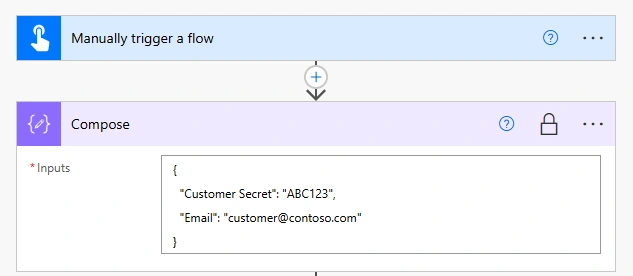
Sample input for a Compose action:
{
  "Customer Secret": "ABC123",
  "Email": "[email protected]"
}
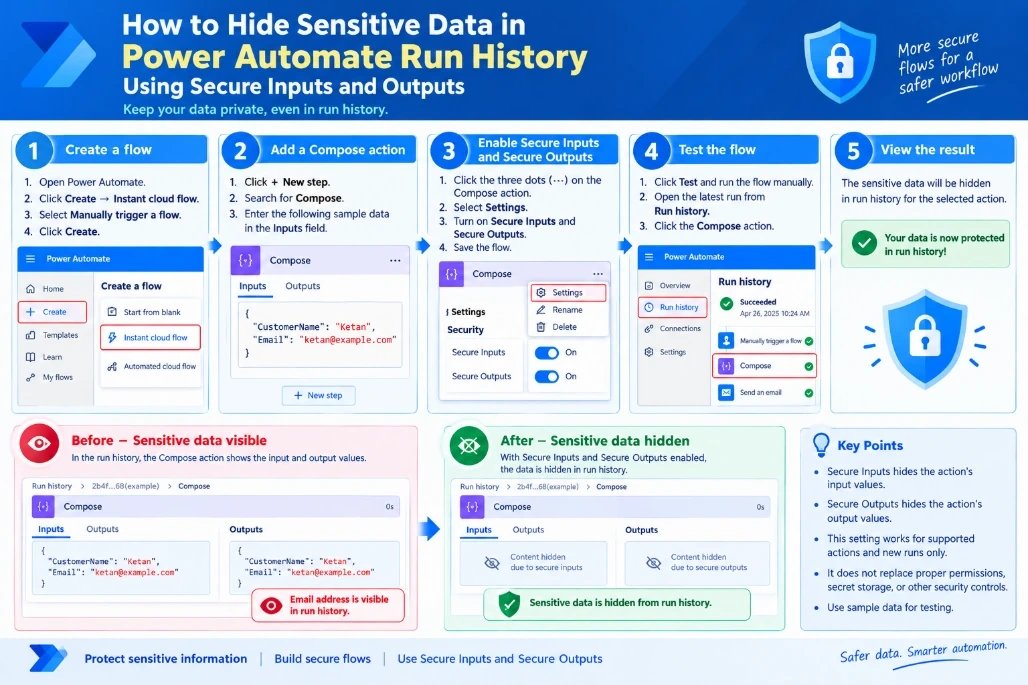
Before enabling security, the values may be visible in the action's run history.
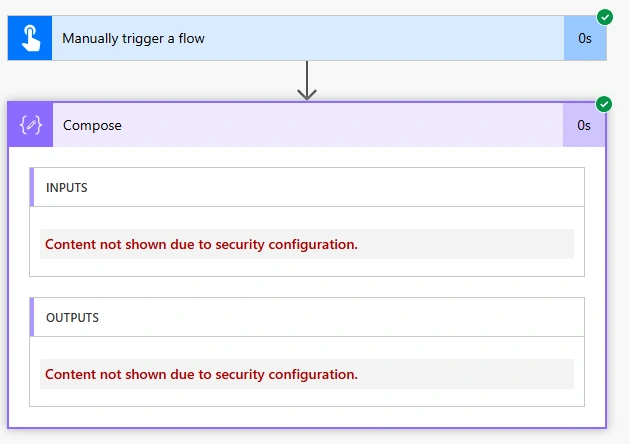
After enabling the appropriate security settings, the sensitive inputs and outputs are hidden in the run history. Depending on the action and designer, the values may appear as hidden content rather than literal asterisks.
Step-by-step implementation in Power Automate
Step 1: Create a flow
- Open Power Automate.
- Click Create → Instant cloud flow.
- Select Manually trigger a flow.
- Click Create.
Step 2: Add a Compose action
- Click + New step.
- Search for Compose.
- Enter the following sample data in the Inputs field.
Enable Secure Inputs and Secure Outputs
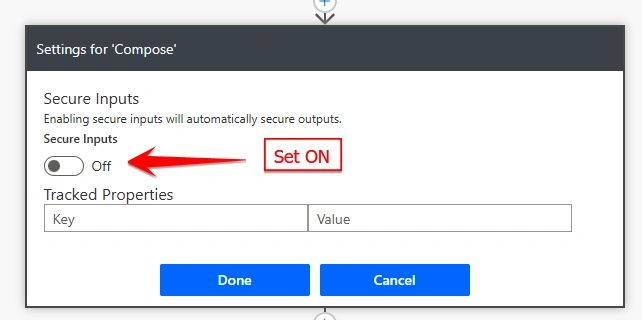
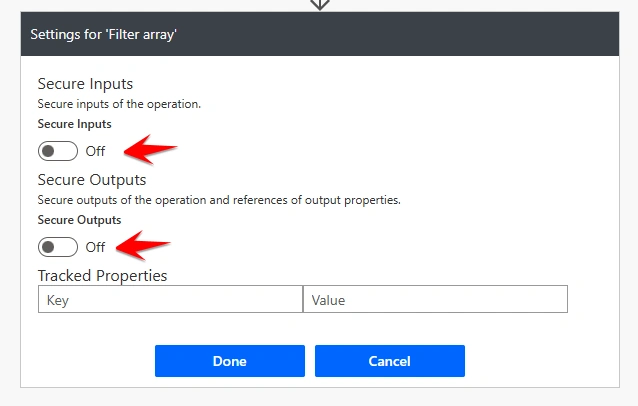
- Click the three dots (
...) on the action. - Select Settings.
- Turn Secure Inputs to On.
- Turn Secure Outputs to On.
- Save the flow.
Test the flow
- Click Test and run the flow manually.
- Open the latest run from Run history.
- Click the action.
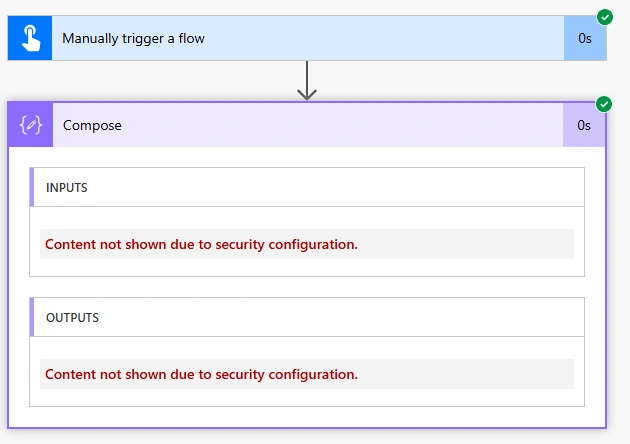
Expected result:
- Before: The email address may be visible in run history.
- After: The protected inputs and outputs are hidden from run-history details.
Understand the result
| Setting | What it hides |
|---|---|
| Secure Inputs = On | The action's input data |
| Secure Outputs = On | The action's output data |
Important: This setting applies to new runs only. It does not hide sensitive information from previous runs. Use sample data for testing.
Important security considerations
- Secure the trigger when necessary: If sensitive values enter through a trigger, secure the trigger's inputs where supported. Protecting a later action does not automatically secure every earlier step.
- Check downstream actions: Sensitive data may be passed to subsequent actions. Review those actions' run-history visibility settings too.
- Existing run history: Enabling these settings protects new runs; it does not retroactively hide values in previous runs.
- Use secure storage: Avoid hardcoding passwords, API keys, or other secrets in flow definitions. Consider Azure Key Vault for secrets that need centralized management.
- Maintain appropriate access controls: Secure Inputs and Secure Outputs reduce exposure in run history; they do not replace access permissions or comprehensive data protection.
Testing checklist
| Test case | Expected result |
|---|---|
| Run without security enabled | Supported inputs or outputs may be visible |
| Run with Secure Inputs enabled | Action inputs are hidden |
| Run with Secure Outputs enabled | Action outputs are hidden |
| Execute the complete flow | Workflow logic continues to work |
| Review an older run | Previously recorded data remains unchanged |
Conclusion
Secure Inputs and Secure Outputs are useful Power Automate features for reducing the exposure of confidential data in workflow run history. By configuring these settings on the appropriate triggers and actions, developers can improve privacy while maintaining normal flow execution.
For production workflows, combine these settings with secure secret storage, least-privilege access, and regular security reviews.

Join the conversation! Your thoughts help the community grow.