
Introduction
In Microsoft Power Apps Canvas Apps, app-level formulas and properties help developers control application startup, navigation, error handling, screen sizing, themes, and other global behaviors.
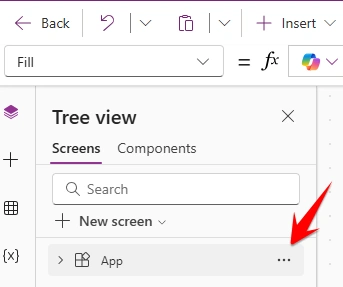
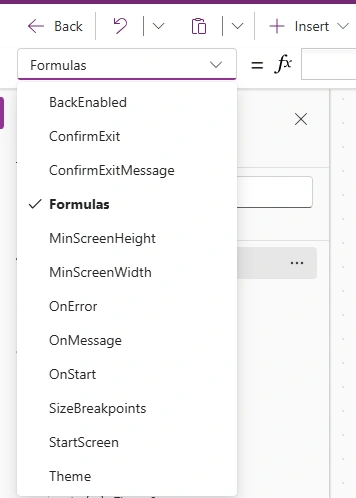
These properties are available by selecting the App object in the Tree view and choosing a property from the property dropdown beside the formula bar.
In this article, we will explore important App-level properties with practical Power Fx examples.
1. OnStart Property
The OnStart property runs when the application starts. It is commonly used to initialize variables, load configuration values, and prepare data required by the application.
Example:
Set(varAppName, "Invoice Approval");
Set(varCurrentUser, User().Email);
Set(varIsAdmin, false)
Explanation: When the app starts, these variables are initialized and can be used throughout the application.
Use cases:
- Initialize global variables.
- Store the current user's email.
- Load application configuration.
- Prepare initial collections.
2. StartScreen Property
The StartScreen property determines which screen opens when the application starts.
Example:
If(
    User().Email = "[email protected]",
    scrAdminDashboard,
    scrHome
)
Explanation: The app starts on scrAdminDashboard for the specified email address and on scrHome for other users.
Use cases:
- Open a role-specific landing screen.
- Navigate users to different starting screens.
- Display different dashboards based on user requirements.
Note: StartScreen should use a declarative formula to select the initial screen. Avoid relying on variables initialized in OnStart, because the initial screen can be evaluated before those variables are ready.
3. OnError Property
The OnError property handles unhandled formula errors in the application. It can be used to display an error message or record diagnostic information.
Example:
Notify(
    "An unexpected error occurred. Please try again.",
    NotificationType.Error
)
Explanation: When an unhandled formula error occurs, the app displays an error notification.
Use cases:
- Display general error messages.
- Log errors for troubleshooting.
- Improve the application's error-handling experience.
For important data operations, use IfError() directly around the operation so that the app can handle the error at the appropriate place.
4. ConfirmExit Property
The ConfirmExit property controls whether users are prompted to confirm before leaving the app.
Example:
trueExplanation: Enables the exit confirmation behavior where supported.
Use cases:
- Help prevent users from accidentally leaving an application.
- Protect workflows where users may have unsaved changes.
5. ConfirmExitMessage Property
The ConfirmExitMessage property specifies the message shown when the exit confirmation prompt is enabled and supported.
Example:
"Are you sure you want to leave the application?"Explanation: Users see a confirmation message when attempting to exit the app, subject to player and platform support.
6. BackEnabled Property
The BackEnabled property controls the availability of the app player's back-navigation behavior where supported.
Example:
trueExplanation: Enables the back-navigation behavior supported by the player.
Use cases:
- Configure navigation behavior for mobile experiences.
- Control whether the app player provides its back functionality.
This property is different from the Back() function, which is used in a formula to navigate to the previous screen.
7. MinScreenWidth Property
The MinScreenWidth property defines the minimum screen width used by the app's responsive layout settings.
Example:
320Explanation: Sets the minimum screen-width setting to 320 pixels.
Use cases:
- Configure layouts for smaller devices.
- Support responsive design requirements.
8. MinScreenHeight Property
The MinScreenHeight property defines the minimum screen height used by the app's layout settings.
Example:
568Explanation: Sets the minimum screen-height setting to 568 pixels.
Use cases:
- Configure app dimensions.
- Support layouts designed for smaller screens.
The actual behavior depends on the app's screen-size and scaling configuration.
9. SizeBreakpoints Property
The SizeBreakpoints property defines width thresholds used to classify screen sizes in responsive canvas apps.
Example:
[600, 900, 1200]Explanation: Defines breakpoints at 600, 900, and 1200 pixels.
Use cases:
- Design layouts for different screen widths.
- Adjust control positioning and sizing.
- Support phone, tablet, and wider layouts.
For example, a control's width can be adjusted using screen width:
If(
    App.Width < 600,
    Parent.Width,
    400
)
10. Theme Property
The Theme property controls the app's theme configuration where supported.
Example:
Select a theme supported by the Power Apps editor or use the available theme configuration.
Use cases:
- Maintain consistent colors and styling.
- Improve visual consistency across screens.
- Support a common design system.
For custom styling, developers can also define reusable color values and apply them to controls.
11. Formulas Section
The Formulas section allows developers to define named formulas that can be reused across the application.
Named formulas are useful for reusable calculations and expressions that do not need to be stored in a variable.
Example:
AppTitle = "Invoice Approval";
CurrentUserEmail = User().Email
These named formulas can then be referenced by controls throughout the app.
For example, set a label's Text property to:
AppTitleBenefits:
- Reuse common expressions.
- Reduce duplicated formulas.
- Improve readability and maintainability.
- Keep derived values declarative rather than manually updating variables.
Conclusion
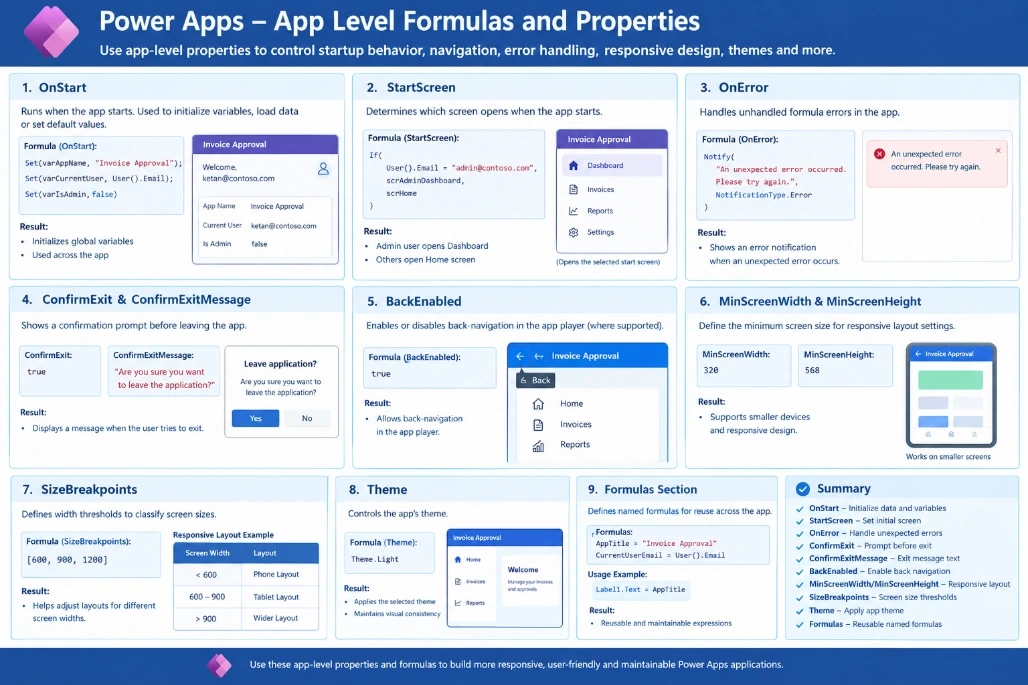
App-level properties are important for configuring the overall behavior of Power Apps Canvas Apps. Properties such as OnStart, StartScreen, OnError, SizeBreakpoints, and Theme help developers manage initialization, navigation, error handling, responsive layouts, and visual consistency.
Understanding these properties helps developers build more maintainable and user-friendly Power Apps applications.




Join the conversation! Your thoughts help the community grow.