Loading
Articles by Ketan Sathavara
- Copilot
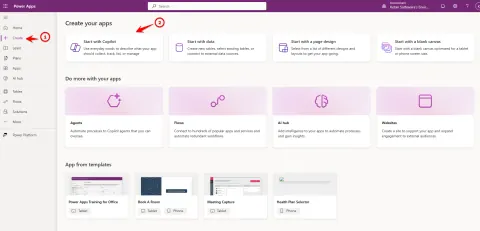
How To Use Copilot to Create a Power App in Minutes
Build Power Apps in minutes using Copilot! Describe your app in natural language and let AI generate a functional app with tables, screens, and logic.
- Power Apps
How to Use Copilot to create a formula from a discrete request in PowerApps
Unlock PowerApps formula creation with Copilot! Learn how to use natural language to generate Power Fx expressions for galleries, buttons, and more. Boost productivity!
- Power Automate
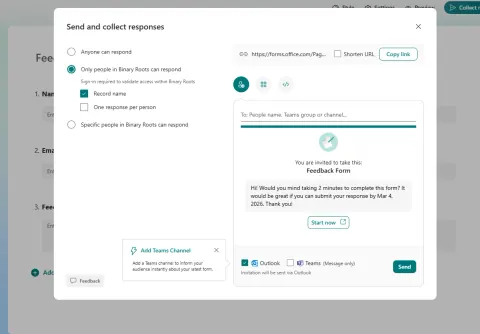
How to Send Microsoft Forms Responses Directly to Outlook via Power Automate
Automate Microsoft Forms responses to your Outlook inbox using Power Automate! Get instant email notifications for each submission, saving time and improving workflow efficiency.
- Power Apps
How to Implement Timer Control in PowerApps
Master Power Apps Timer control! Automate actions like auto-navigation, data refresh, and countdowns. Learn to use properties and examples for seamless app automation.
- SharePoint
How to Configure and Use Validation Settings in SharePoint
Master SharePoint validation! Learn to configure column & list validation for data accuracy. Enforce rules, prevent errors, and improve data quality in SharePoint lists.
- SharePoint
How To Create and Manage Groups in SharePoint Online
Learn how to create and manage groups in SharePoint Online for efficient permission management. Streamline access control and enhance security by grouping users. Simplify SharePoint administration!
- SharePoint
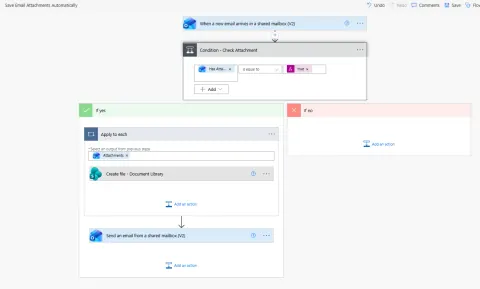
How to Automatically Saving Email Attachments to SharePoint and Sending Notifications
Automate saving email attachments to SharePoint & send notifications with Power Automate! Streamline document management, boost productivity, and reduce manual errors.
- Power Apps
How to Use Default and DefaultSelectedItems in PowerApps Controls
Master PowerApps Default & DefaultSelectedItems properties for efficient data entry & improved user experience! Learn to pre-populate forms and create dynamic apps.
- SharePoint
How to Customize SharePoint List Forms with Power Apps
Customize SharePoint list forms with Power Apps! Enhance data entry with conditional logic, dynamic validation, and custom layouts. No coding needed! Streamline workflows and boost usability.
- SharePoint
How to Create a New SharePoint List From Existing SharePoint List
Quickly create new SharePoint lists from existing ones! Copy columns, views, and formatting to maintain consistency. Learn how to streamline list creation in SharePoint Online. Perfect for task tracking and project management!
- Power Automate
How to Use Expressions in Power Automate
Unlock Power Automate's potential! Learn how expressions dynamically manipulate data, add logic, and control automation. Master text, dates, arrays, and more for smarter flows.
- Power Apps
How to Use logical functions in PowerApps
Master PowerApps logical functions (If, And, Or, Not) to build dynamic, responsive apps! Learn to validate input, control behavior, and enhance user experience.
- Power Apps
How to Use User Defined Function (UDF) in Power Apps
Master Power Apps User Defined Functions (UDFs)! Learn to create reusable formulas, simplify complex calculations, and build scalable, maintainable apps. Examples included!
- Power Apps
How to use variables in PowerApps
Master Power Apps variables! Learn to use Global, Context, and Collections to store data, control visibility, and manage user input. Includes practical examples.
- SharePoint
How to Use SharePoint Calculated Columns
Automate calculations in SharePoint lists using calculated columns! Learn to create dynamic formulas for text, numbers, dates, logic, and more. Boost productivity!
- Power Automate
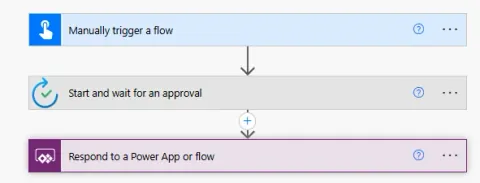
How to Use Parent and Child flows in Power Automate
Master Power Automate by using Parent and Child flows! Simplify complex workflows, enhance reusability, and improve maintainability. Learn with our invoice approval example.
- Power Apps
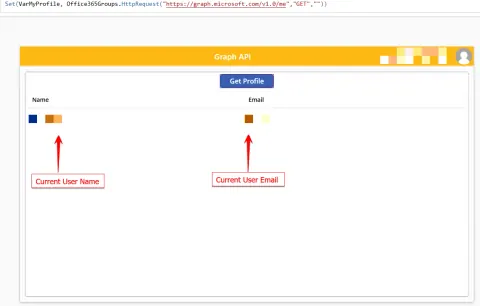
How to use Microsoft Graph API in PowerApps
Unlock Microsoft Graph API in PowerApps! Extend your app's capabilities beyond standard connectors. Access advanced data from Microsoft 365 services securely.
- Power Apps
How to Enhancing User Engagement through Power Apps
Personalize Power Apps with dynamic user experiences! Learn how to use User() and Office365Users to tailor content, roles, and dashboards for better engagement.
- Power Apps
How to Power Apps to upload attachments to SharePoint via Microsoft Graph
Upload attachments to SharePoint from Power Apps using Microsoft Graph! This tutorial covers setup, code, permissions, and handling file size limits (<=4MB).
- SharePoint
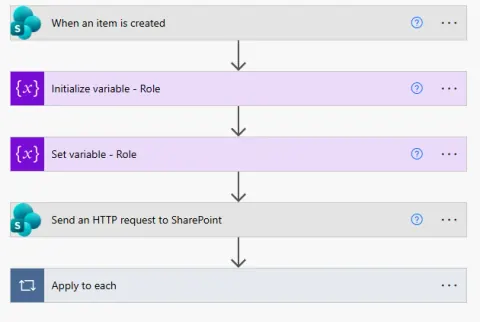
How to Break and Set SharePoint Group Permissions on List Items Using Power Automate
Automate SharePoint list item permissions! Use Power Automate to break inheritance and grant group access (Read, Contribute, Full Control) via HTTP requests.
- Power Apps
How to Use With() Function in Power Apps
Master the Power Apps With() function! Simplify complex formulas, create temporary variables, and enhance readability. Explore 15 practical examples for efficient coding.
- Power Apps
Understanding Error Handling in Power Apps
Master Power Apps error handling! Learn to use IfError(), Errors(), and more to build robust apps. Prevent crashes, protect data, and improve user experience. Validate inputs and handle Power Automate flows for seamless apps.
- SharePoint
How to Create a View in a SharePoint List
Creating a view in SharePoint lets you customize how information appears in a list or document library and sort, filter, group, or display items in a format.
- Power Automate
Trigger Conditional in Power Automate: How & When to Use Them
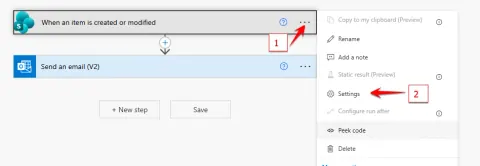
Trigger Conditions in Power Automate allow you to control when a flow should start, based on specific logical expressions. Instead of running a flow every time a trigger event occurs—such as when an item is created, modified, or a file is added—you can use trigger conditions to ensure the flow runs only when certain conditions are met. By adding one or more trigger conditions to a flow’s trigger settings, you can limit unnecessary executions, improve performance, reduce flow run counts, and ensure automation is executed only when truly required. Trigger conditions use Power Automate expressions to evaluate field values, changes, or business rules before the flow begins.
- Power Apps
🚫 Stop Using Power Automate to Send Emails from Power Apps
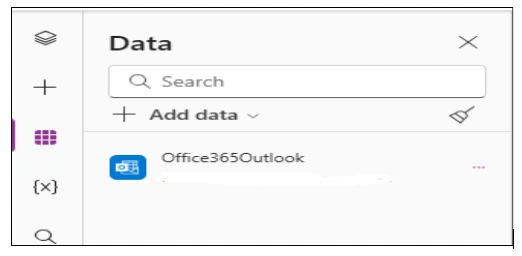
Learn why sending emails from Power Apps through Power Automate is slow, costly, and outdated—and discover faster, native alternatives using modern connectors or Graph.